
Tutorial
How to Evaluate Apple Foundation Models on macOS
A practical guide to running structured evaluations on Apple Intelligence Foundation Models directly on your Mac — with scoring, leaderboards, and A/B variant comparison.
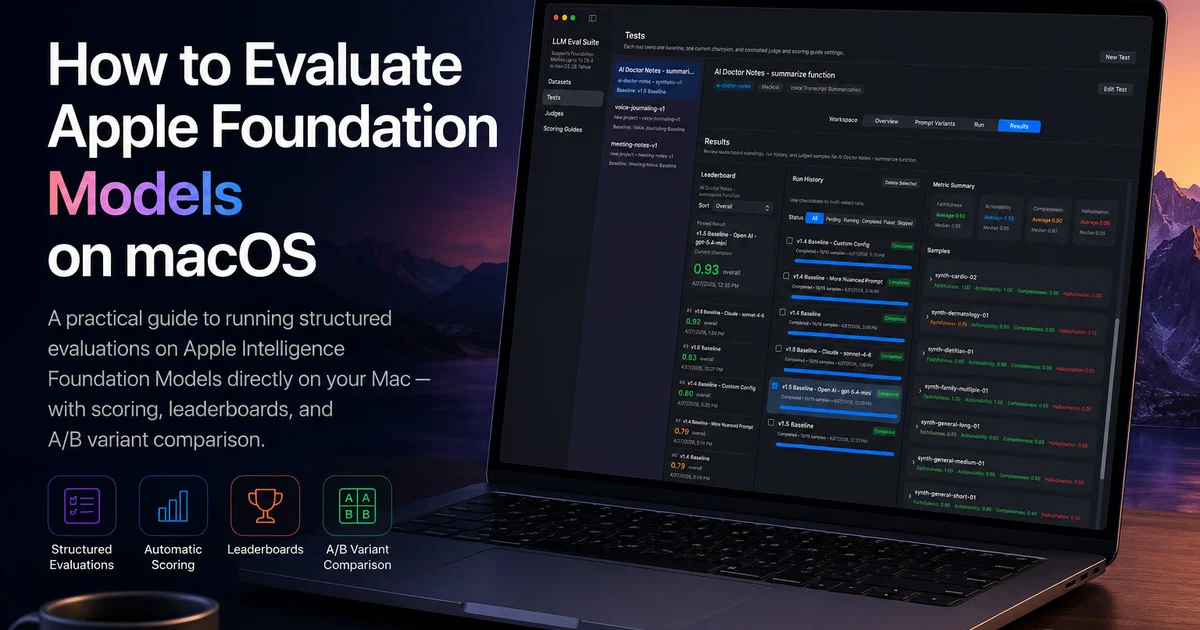
Apple Intelligence Foundation Models bring powerful AI capabilities directly to your Mac. But how do you know if your prompts and generation configurations are actually producing good outputs? That's where structured evaluation comes in.
What is Foundation Model Evaluation?
Foundation Model evaluation is the process of systematically measuring how well your AI outputs perform against defined criteria. Unlike subjective testing or user feedback, evaluation gives you measurable, repeatable scores across four dimensions Raj et al., RAGAS, 2023:
- Faithfulness — Does the output stay true to the input?
- Actionability — Is the output useful when you need to act on it?
- Completeness — Are key points and context captured?
- Hallucination — How much is fabricated or unsupported?
Why On-Device Evaluation?
Running evaluations on your Mac has significant advantages (Apple Developer Docs, Foundation Models):
- Privacy — Your data never leaves your device
- Cost — No API fees for generation (Apple Foundation Models are free to use)
- Speed — On-device inference is fast for most use cases
- Offline — Works without internet connectivity
What You'll Need
- • macOS 26.0 or later
- • Apple Silicon Mac (M-series chip)
- • Apple Intelligence enabled
- • LLM Eval Suite (download from Mac App Store)
- • Cloud API key for judge (MiniMax, Anthropic, or OpenAI)
Apple Foundation Models run on the Neural Engine, delivering up to 38 TOPS (tera operations per second) with a 4,096-token context window (Apple Developer Docs).
Step 1: Create a Dataset
A dataset is a collection of input samples you want to evaluate against. Each sample should represent real-world inputs your AI feature would receive.
For example, if you're evaluating a voice journaling summarizer, your dataset might include:
- Voice transcripts of varying lengths
- Different speaker counts (single vs multi-party)
- Various clarity levels (clear audio vs noisy)
- Different complexity levels (casual vs technical content)
Import your dataset as a JSON file with inputText, idealOutput (optional), and expectedEntities fields.
Step 2: Define Your Prompt Variants
Variants are the different prompt configurations you want to compare. Each variant includes:
- Prompt template — Your instruction with an {input} placeholder
- Generation provider — Apple Foundation Models for on-device
- Generation config — Temperature, max tokens, sampling mode
Create at least two variants: your baseline (current implementation) and a challenger (the change you want to test).
Step 3: Configure Your Judge
The judge evaluates outputs using structured scoring. LLM Eval Suite supports MiniMax, Anthropic (Claude), and OpenAI (GPT) as judge providers.
Choose a judge that's more capable than your generation model — this is the "LLM-as-judge" approach. We recommend MiniMax 2.7 for its balance of cost and quality.
Select a scoring guide that matches your domain:
voice-transcript-standard— For voice/journaling summarizationmeeting-notes-standard— For meeting notes extractionminimal— For generic use cases
Step 4: Run Your Evaluation
Hit run and watch the progress. Each sample gets scored across all four metrics, then aggregated into an overall score:
overall = (faithfulness × 0.3) + (actionability × 0.3) + (completeness × 0.2) + ((1 − hallucination) × 0.2)
The leaderboard ranks your variants so you can see at a glance which configuration performs best.
Understanding the Results
After evaluation, you'll see:
- Per-sample scores — Detailed breakdown for each input
- Aggregate scores — Average across all samples
- Leaderboard ranking — Variants ordered by overall score
- Metric comparison — See which dimensions improved or suffered
Next Steps
Once you have baseline scores, iterate on your prompts and generation configs. The structured evaluation workflow helps you make data-driven decisions rather than relying on gut feelings.
Read our step-by-step guide to creating your first test for a more detailed walkthrough. For understanding how local models compare to cloud LLMs, see our Apple Foundation Models vs cloud LLMs comparison. To learn how judges evaluate outputs, read our guide to LLM-as-a-judge evaluation.
Ready to evaluate?
Download LLM Eval Suite from the Mac App Store and start running structured evaluations today.
Download on Mac App Store